Appearance
Getting started
What Loop is
Loop is a time tracker for one person, on one Windows PC. You press play when you start something and stop when you finish. Loop keeps a log of where your time went, and you can look back over it in reports and insights.
It also helps you pace your day. You can run focus and Pomodoro sessions, get gentle reminders to rest your eyes or stand up, and set quick timers for small things like tea.
Everything stays on your computer. There is no account to create, no cloud and no sync. Loop makes no network connections at all, so your logs are yours alone.
Who it's for
Loop suits people who work for themselves or on their own: freelancers, sole traders, consultants, students, and anyone who wants an honest picture of their week. It works well if you:
- need to know how long things really take, or keep records of your hours,
- split your time between several projects or clients, and between work and personal,
- want a timer that stays out of the way, with a small always-on-top mini timer,
- prefer your data to stay on your own computer.
If you want a quiet tool that you control, Loop is made for you.
What Loop is not
- Not a team tool. There are no shared projects, no managers and no accounts for other people.
- Not a spy. It doesn't watch you by default. The optional activity lane is off until you turn it on, and it never leaves your PC.
- Not on other devices. It's a Windows app, with no phone or web version, and your data doesn't move between computers on its own.
Install
Run Loop Setup. It installs for your user only, so it needs no administrator rights. Loop appears in the Start menu. Updating is the same: run the new installer over the old one and your data stays.
Your first log
- Open Log in the sidebar.
- Type what you are working on, optionally pick a project, and press the round play button.
- Press stop when you are done. The log appears in the list.
You can also add time after the fact. Click the pencil icon next to the timer to enter a start, an end and a date by hand.
The sidebar
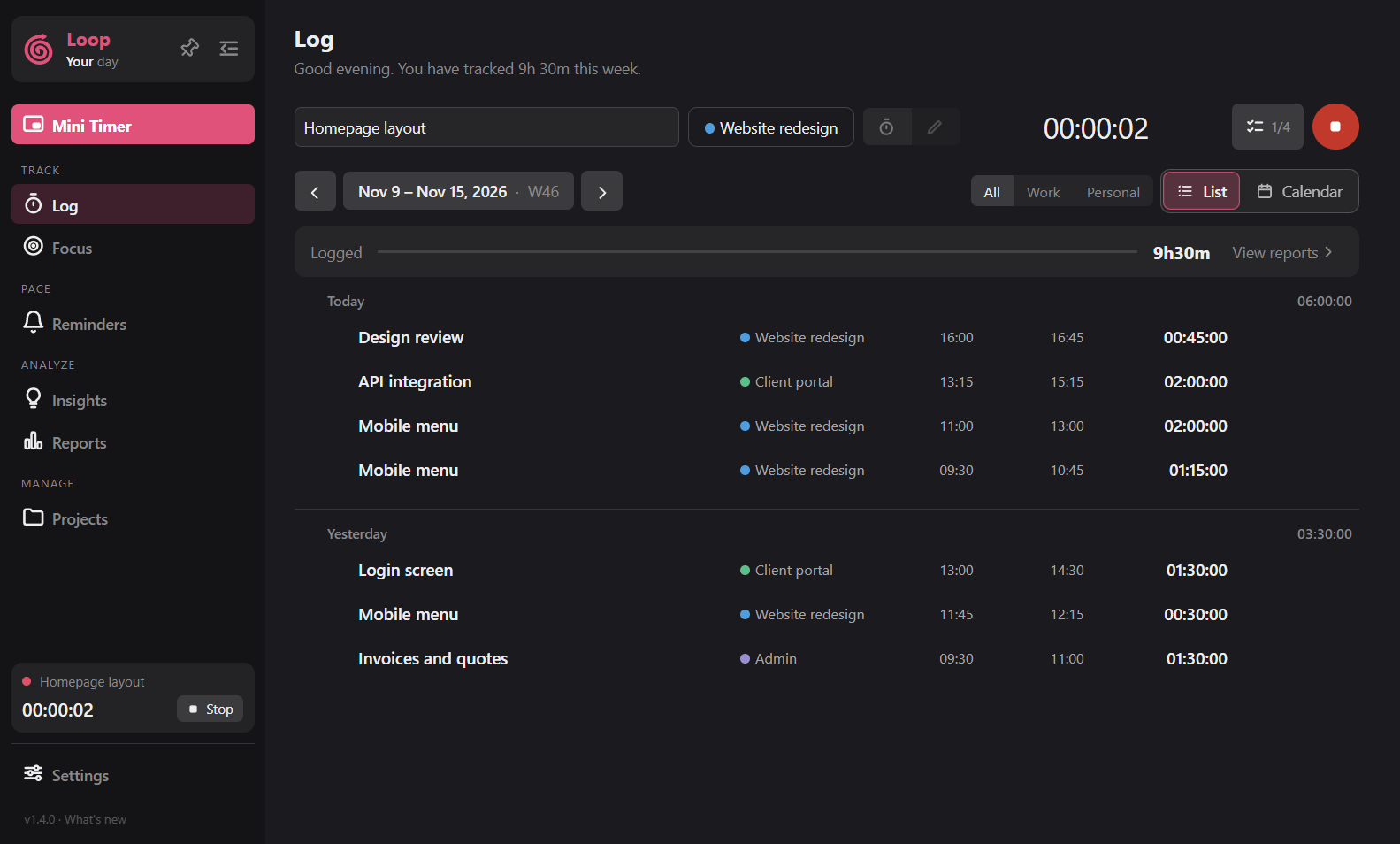
| Section | Pages |
|---|---|
| (top) | Mini Timer button |
| Track | Log, Focus |
| Pace | Reminders |
| Analyze | Insights, Reports |
| Manage | Projects |
Settings sits at the bottom. The arrow at the top collapses the sidebar to icons (Ctrl+B). The pin keeps the window on top of other windows. Click the Loop logo for the About box.
The tray
Closing the window does not quit Loop. It keeps running in the system tray so your timer and reminders carry on. Right-click the tray icon to open Loop, open the mini timer, start or stop the timer, keep the window on top or quit.
Next steps
- Use the mini timer to keep a small timer on screen.
- Set up Reminders to rest your eyes or stand up.
- Learn the shortcuts.