
Appearance
Log
The Log page is where your time lives. It shows everything you have tracked, as a list or a calendar.
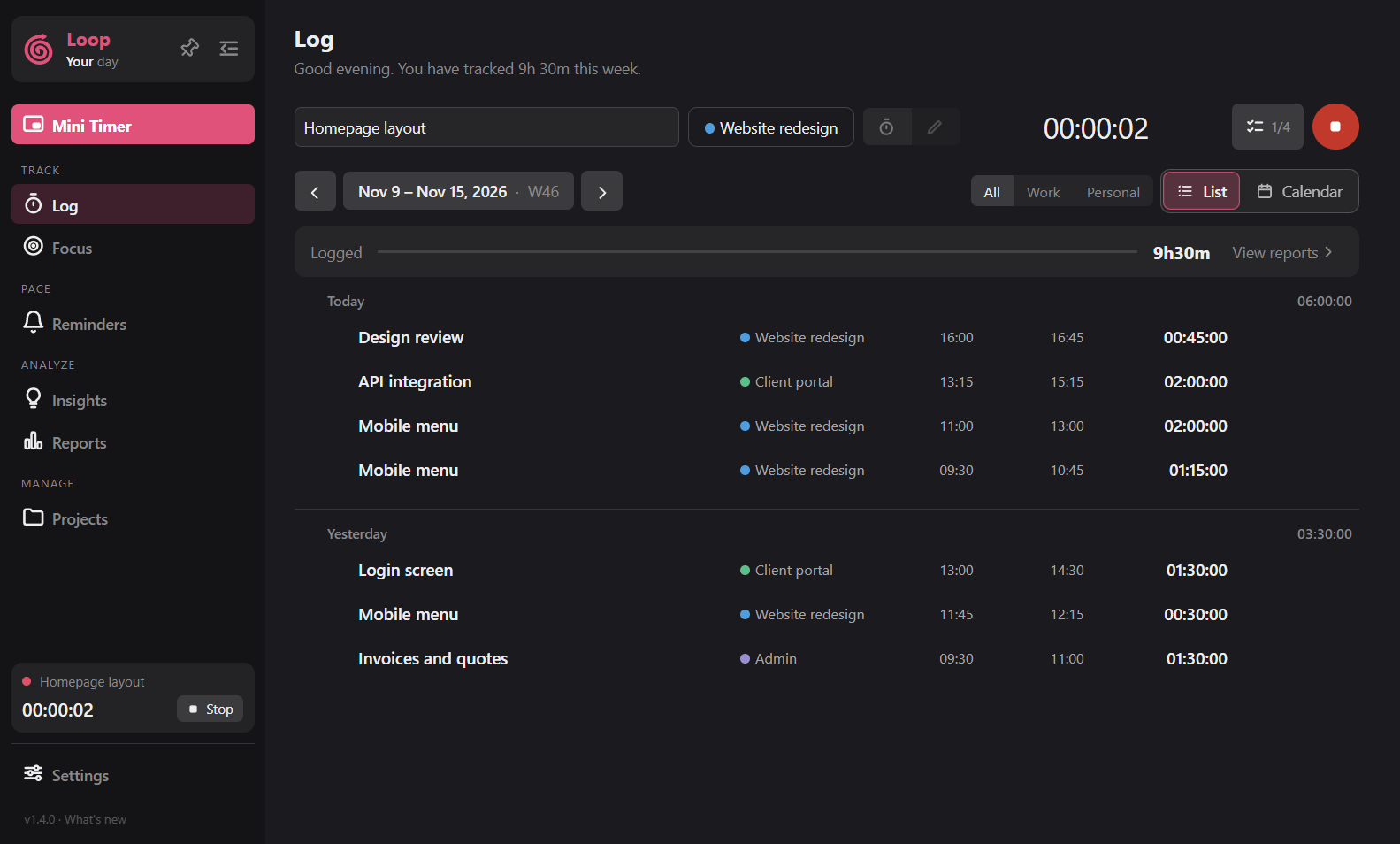
The timer bar
Type a task, pick a project (search, or create one on the spot), and press play. The pencil icon switches to manual entry. The mini-timer icon opens the mini timer.
Choosing a day or range
Use the arrows, the Today button or the date picker to move between a day, week, month or custom range. A small dot under a day means something is logged there. In the picker, + and - extend or shorten the range.
Filter by All, Work or Personal. See Projects for what those mean.
List view
- Click a task name to rename it.
- Click the project tag to change the project.
- Click a start, end or duration to edit it in place. Times accept
9:30,930,14:05,9pm. Durations accept1:30,45m,1.5hor90(minutes). - Hover a row for play, the
⋮menu (Edit, Duplicate, Mark as focus session, Change date) and delete. - Tick the boxes to select several logs, then edit, duplicate or delete them together.
A day header can show an untracked chip when the activity lane saw you working but nothing was logged.
Calendar view
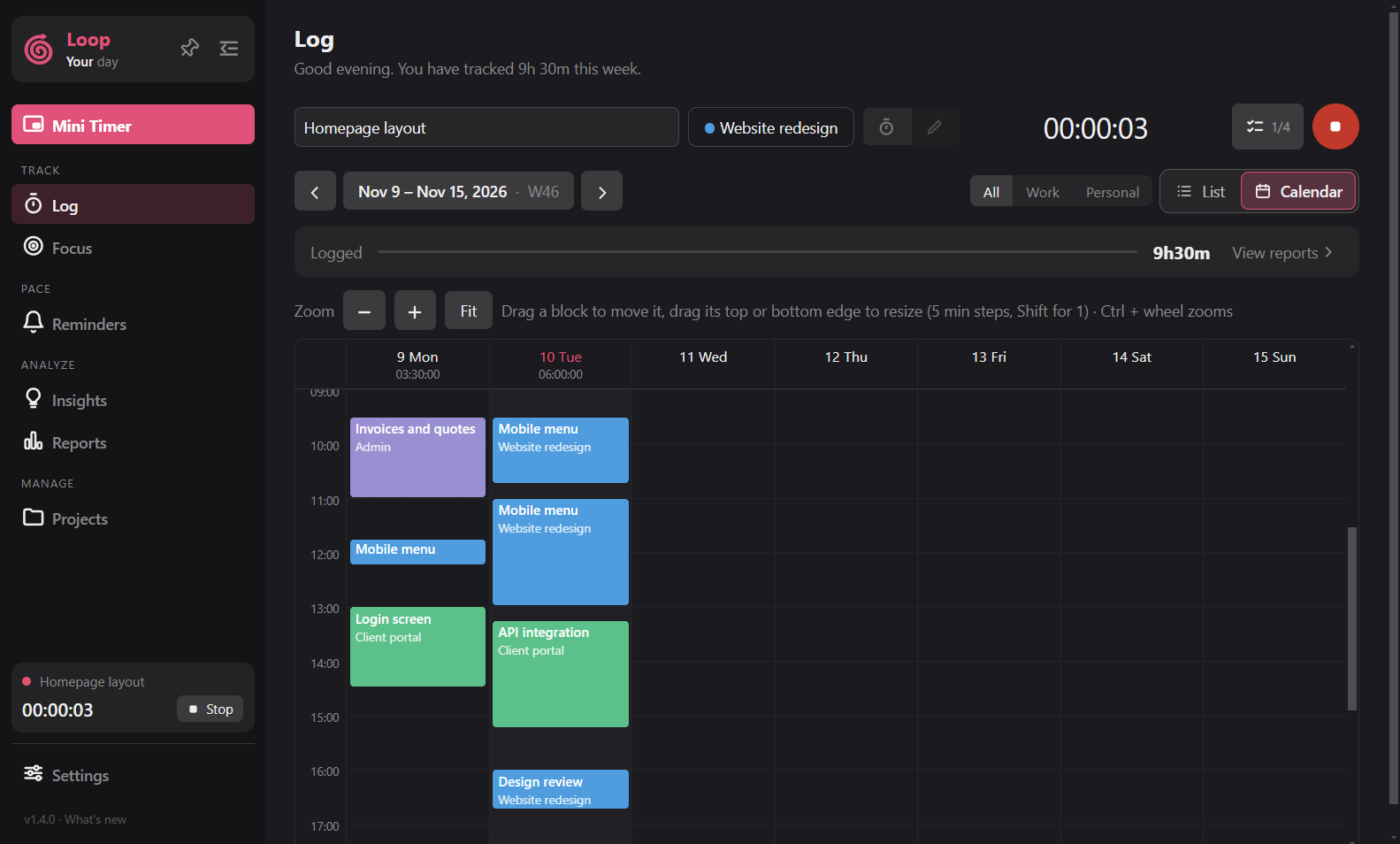
- Drag a log to move it, or drag its edge to resize it. Times snap to 5 minutes; hold
Shiftfor 1 minute.Esccancels. An Undo appears afterwards. - Zoom with the buttons, Fit, or
Ctrl+ mouse wheel. - Overlapping logs sit side by side.
CtrlorShift+ click starts selection. You can then merge logs into one, with an Undo.
Checklists
Each log can carry a checklist. The list shows a small badge like 2/5.