Appearance
Reminders
Reminders are gentle cards that appear at the bottom right of your screen: rest your eyes, stand up, drink water. They do not steal focus from what you are typing.
Open Reminders in the Pace section.
Create one
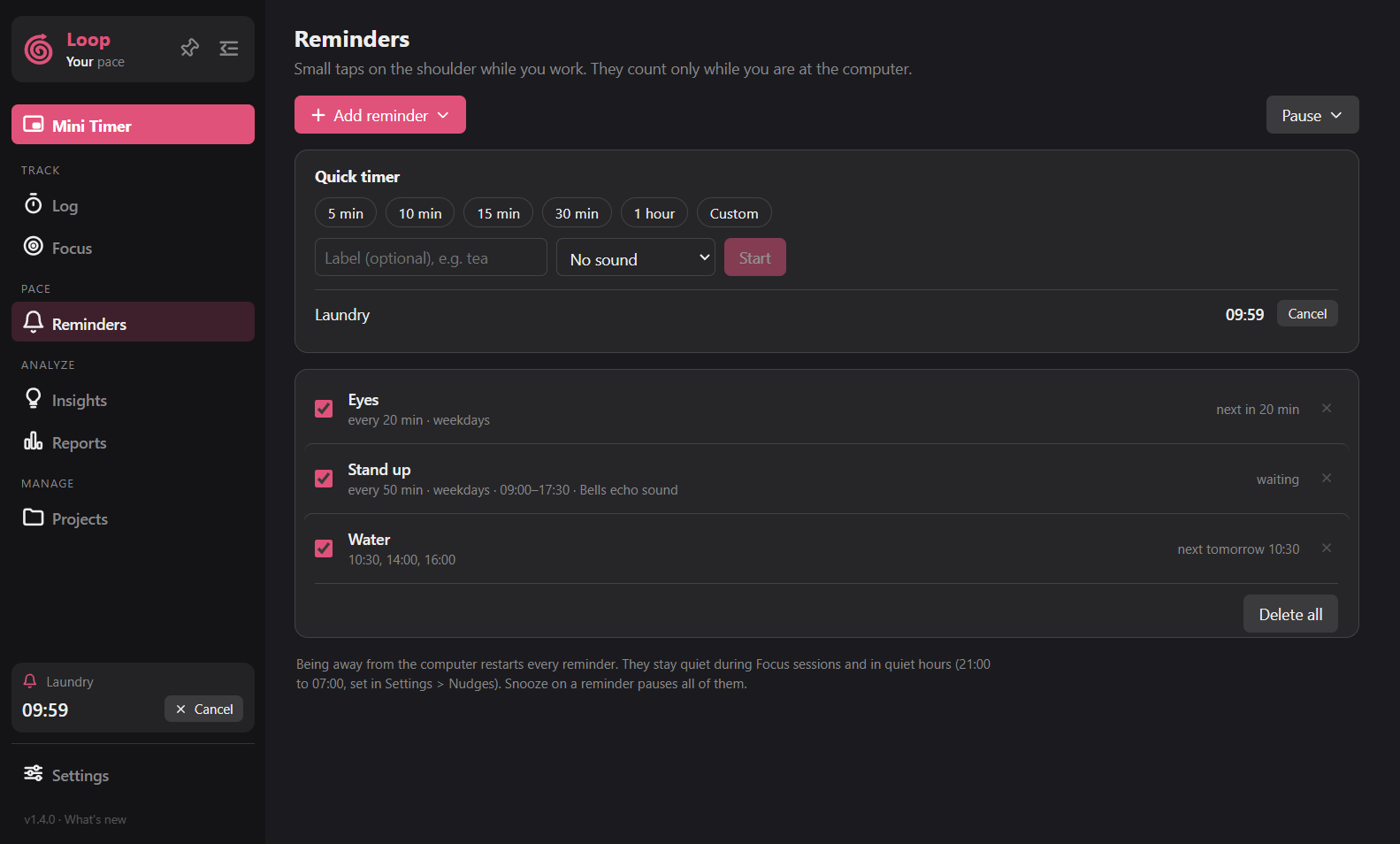
Click Add reminder and start from a template (Eyes, Stand up, Water, Posture) or a Blank one. Nothing is on until you create it. Everything can be edited.
Each reminder has:
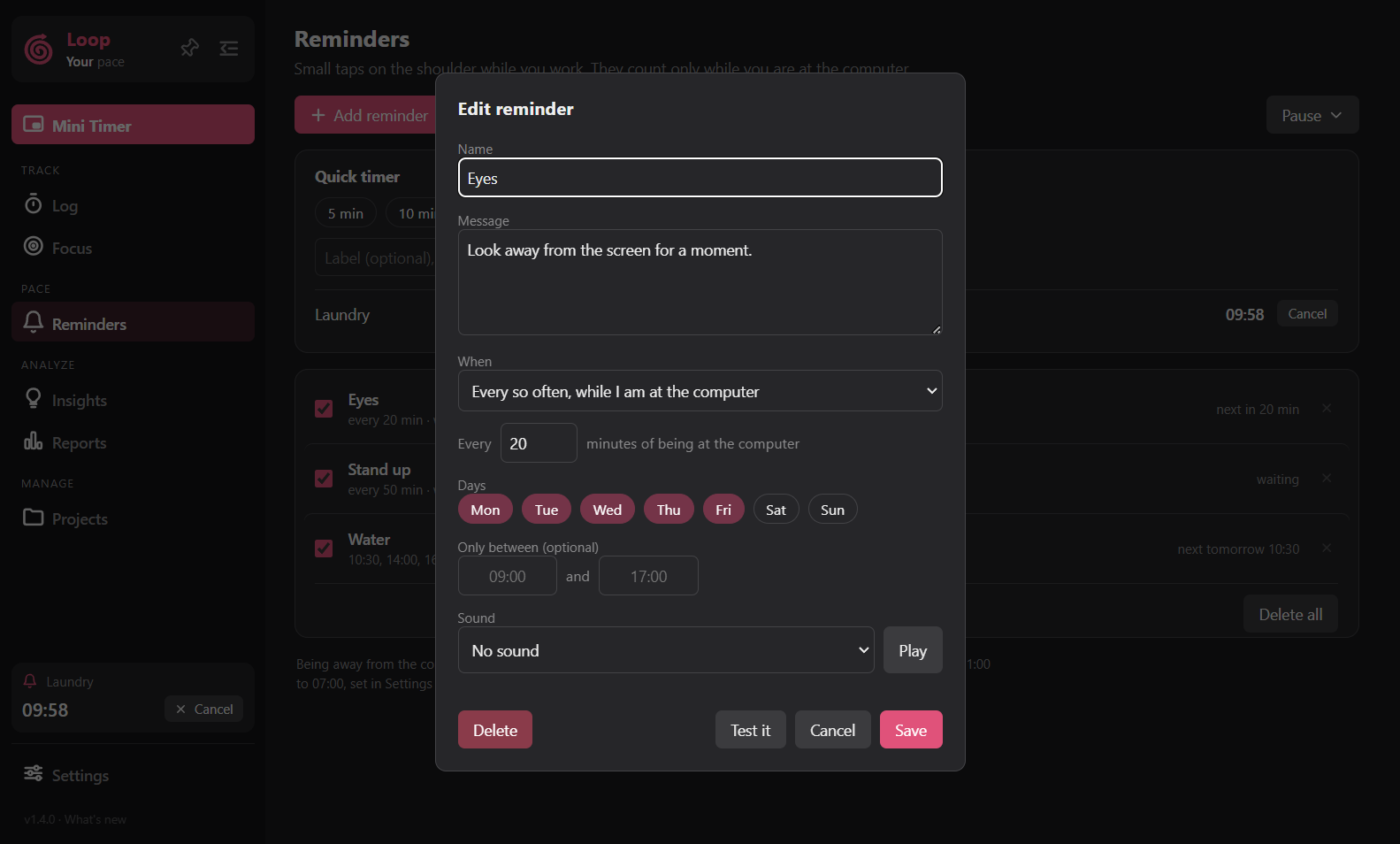
- A name and a message: one or more lines of text, one per line. With several, Loop picks one at random and never repeats the same one twice in a row.
- When: every so often, while I am at the computer (every N minutes), or at set times of the day (for example
10:30, 14:00). - Days of the week, and optionally Only between two times of day.
- A sound, if you want one. See Sounds.
- Test it to see the card right away.
Click a row to edit it. The edit box looks like this:
The x on a row deletes it after a confirmation. Delete all appears at the bottom of the list when you have two or more.
How "every N minutes" counts
It counts only time you are active. If you step away, the count starts over when you come back, so you are not reminded the second you sit down. Sleep and lock reset it as well.
When reminders stay quiet
- During a Focus or Pomodoro session.
- While paused.
- In quiet hours (the same ones as Nudges).
Pausing
The card has a Snooze button with 5 minutes, 30 minutes, 1 hour and Today. The Pause button on the Reminders page does the same. The mini timer's right-click menu offers Pause reminders for 30 minutes, 1 hour or the rest of today. It is one switch for all reminders.
The card
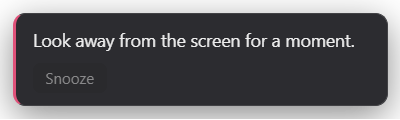
It fades in, stays for about 10 seconds (longer while you hover over it), then fades out. You can change how long in Settings > Reminders.