Appearance
Settings
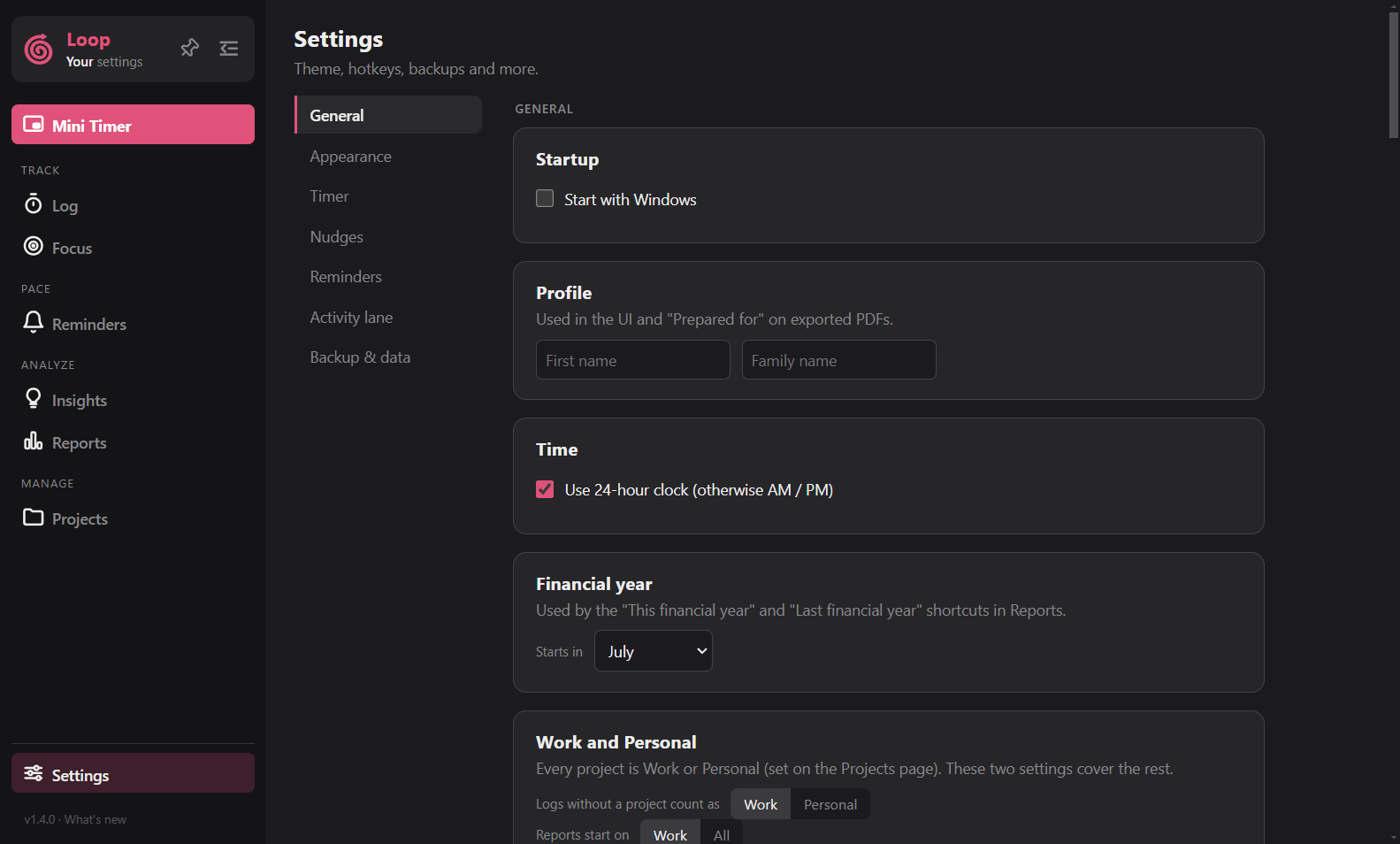
Categories are listed on the left. Click one to jump to it. The list highlights where you are as you scroll.
| Category | What is in it |
|---|---|
| General | Start with Windows, your name, 24-hour clock, financial year, Work and Personal |
| Appearance | Themes (built-in or your own) and font |
| Timer | Mini timer options, checklist badge, Focus project name, idle and sleep detection, hotkeys |
| Nudges | The master switch, which nudges, timing, per-project goals |
| Reminders | How long the card stays, shared rules, sound volume, a sample card |
| Activity lane | Turn it on, away time, short switches, which apps may keep titles |
| Backup & data | Back up now, restore, open the backup folder, delete all data |
General
- Start with Windows: Loop starts hidden in the tray.
- Profile: your first and family name. Used in the app and in "Prepared for" on exported PDFs.
- Time: use the 24-hour clock instead of AM / PM.
- Financial year: the month it starts. Reports uses it for the "This financial year" and "Last financial year" ranges.
- Work and Personal: whether logs without a project count as Work or Personal, and whether Reports start on Work or on All.
Appearance
A theme is three colours: background, text and accent. The rest is derived. Pick a built-in theme or make your own with Save as new theme. You can edit or delete your own themes, but not the built-in ones.
Tick Pick a random theme automatically to change theme every N minutes, hours or days, and optionally on every start.
Under Font you can choose any of the listed fonts that are installed on your Windows.
Timer
- Mini timer: close it when you stop the normal timer, the see-through drawer and its opacity, switch to it when a focus session starts, and close it when focus ends. See The mini timer.
- Checklist: hide the finished-checklist badge on the Log page. See Checklists.
- Focus Project Name: the standard name for the project that focus logs can be moved to, and whether logs are moved there when you tag them as focus.
- Idle & sleep detection: see below.
- Hotkeys: see Shortcuts.
Idle and sleep
If you step away or the PC sleeps while a timer runs, Loop shows a banner when you are back. It asks after the number of minutes you choose (5 to 60). The banner offers three choices:
- Stop at the time you left,
- Remove it & keep tracking, which drops the idle time,
- Keep the time.
Nothing is shown when no timer is running.
Nudges, Reminders, Activity lane
These have their own pages: Nudges, Reminders and Activity lane.